
Once we have created all the exercises of an exam, we can configure different features of it. To do so, we have two options: select “Exam Properties” within the menu “Exam”.
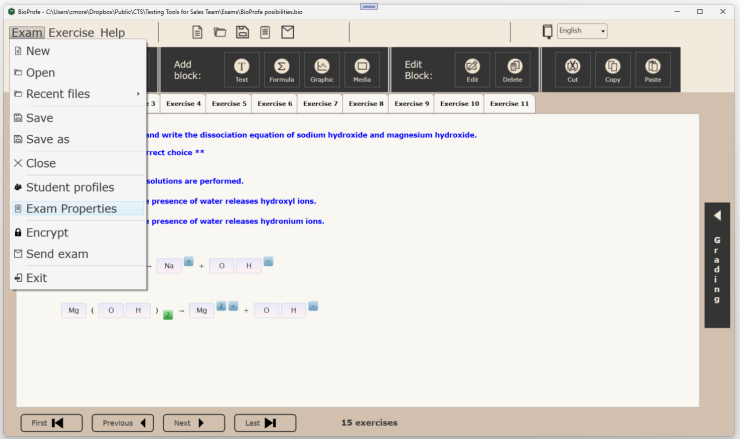
or click on the icon exam properties, which is represented by a note book located in the top area of BioProfe CREATOR main window.

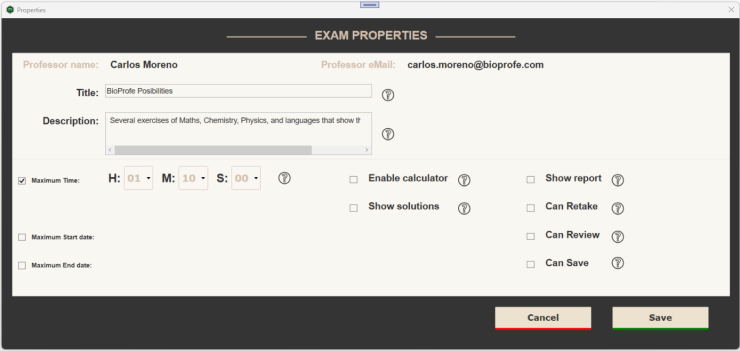
In the Exam Properties window we can configure the next features:
– Title: The content is free and can be just one or several words. It will be displayed in BioProfe READER when students receive and solve the exam.
– Description: This field can be used to explain what the exam is about. This field will also be visible to students in BioProfe READER.

– Maximum time: It is the time given to solve the exam. When this time is over, the exam will be terminated immediately. Exercises in blank will be counted as incorrect.
– Start date and End date: Dates for the exam, that is, the student will be able to solve the exam after the Start Date and until the End Date.
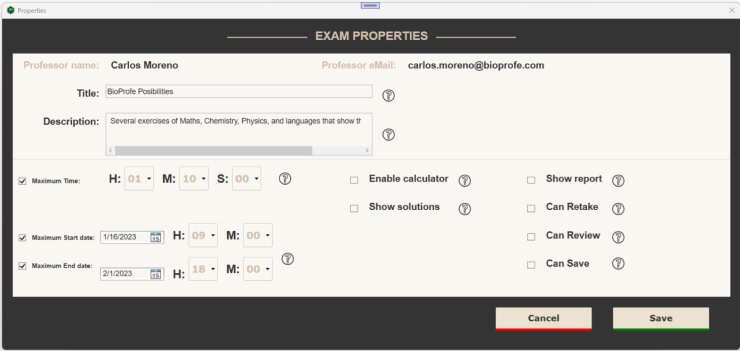
– Enable calculator: this option allows the professor to decide whether the user of BioProfe READER can use the calculator to help him/her to solve the exercises.
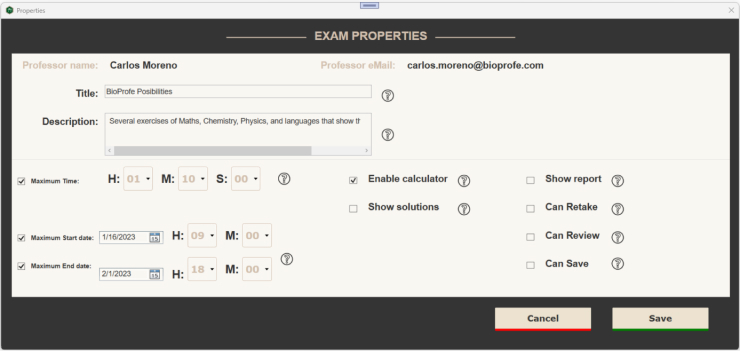
– Show report: it specifies whether the student can see the report when the exam is over, i.e. if he/she has passed the exam or not.
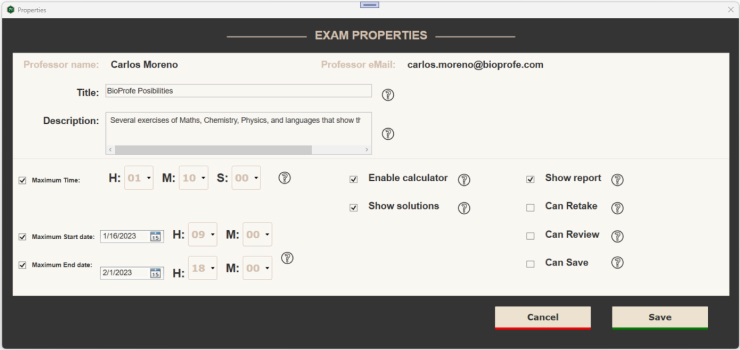
– Show solutions: This option specifies whether the student has the possibility to see the correct solutions in each exercise.
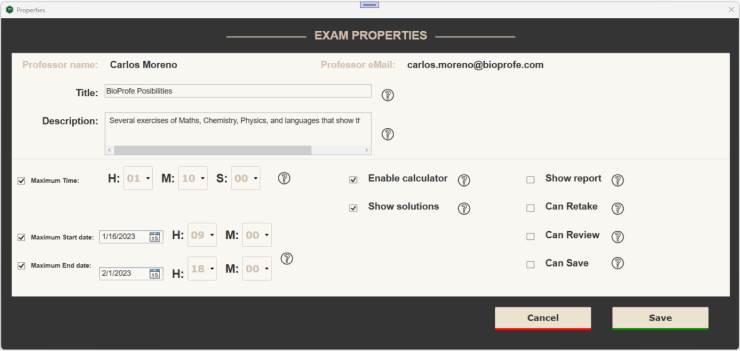
– Can Retake: it specifies whether the students can take the exam as many times as they want.
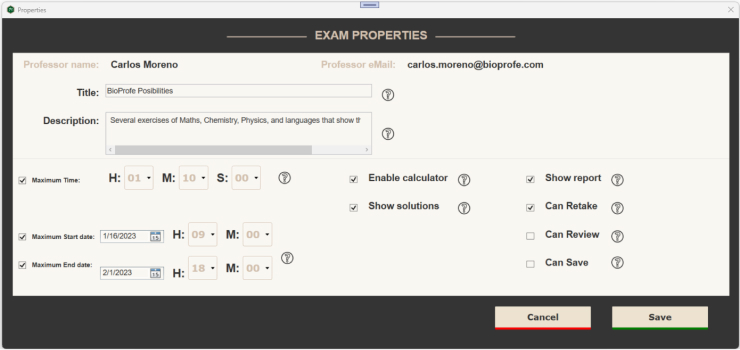
– Can Review: Once the exam is finished, the student will be able to see in each exercise the self-corrected answers, that is to say, those that have been answered correctly, and those that have not, the incorrect answer will be shown in red and the correct one in gre.
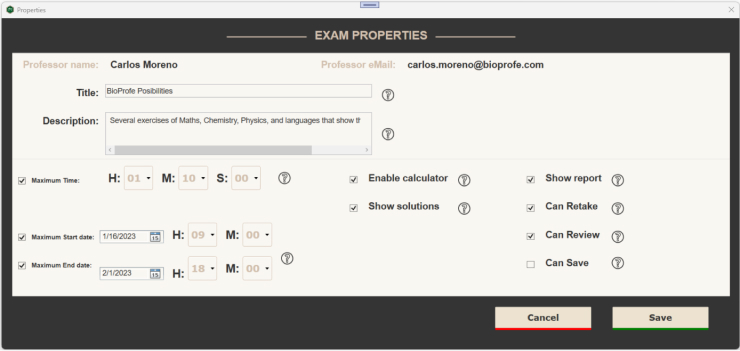
– Can Save: Specifies if the students can save the exam on their device (computer or tablet).
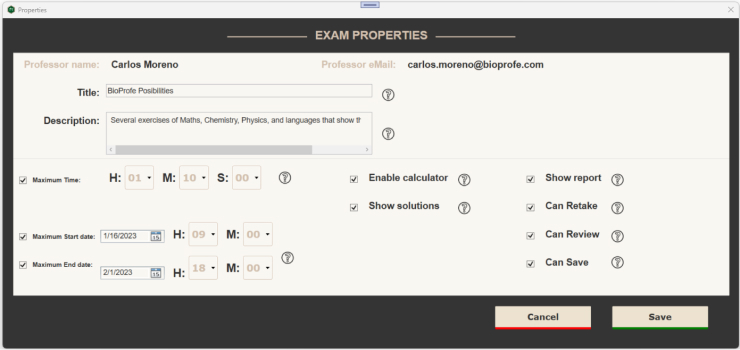
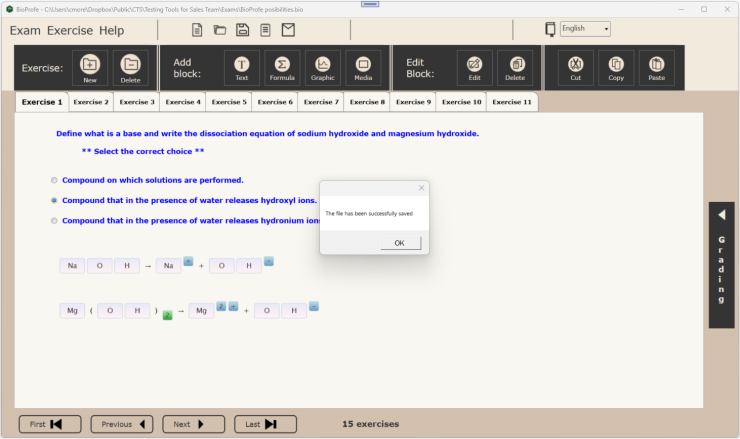
Once the Exam Properties have been saved (clicking on the button “Save”), we come back to the main window of BioProfe CREATOR. If the exam is a new one we save it selecting “Save” or “Save as” within the menu “Exam”, or clicking on the icon save, which is represented by a diskette placed in the top area of the BioProfe CREATOR main window.