
The BioProfe CORRECTOR main window has by default the Inbox folder containing the exam list that the students have sent. For each exam we can see the exam title, the student’s name, his/her group and the exam date. The texts will be in bold font when the exam has never been opened.
To see one of them, click the title.


The window with the report will open. The report displays information about the exam itself, the results and several buttons to perform different actions.
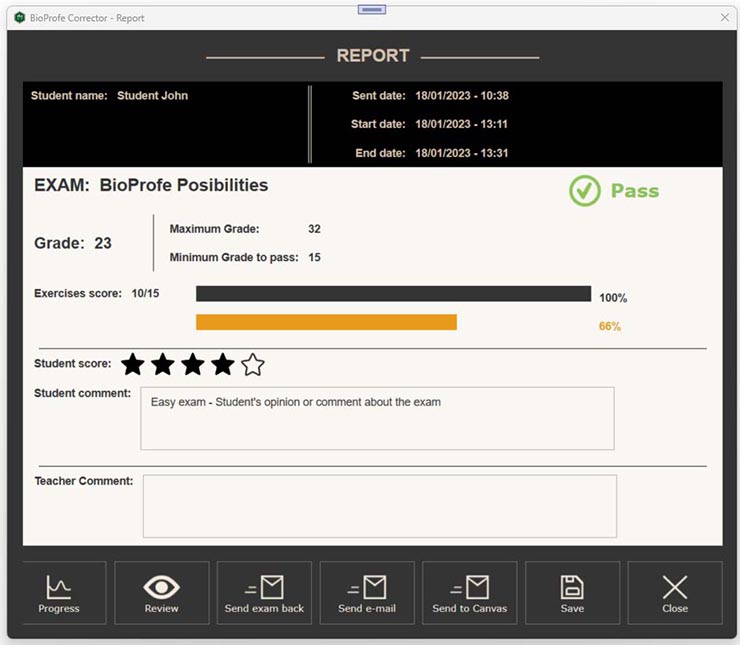
One of the actions is to send the exam results to Canvas platform.
To perform this action, click on the “Send to Canvas” button.

To view the list of courses and assignments you have two options, synchronize with Canvas or use the last downloaded list from Canvas. If you have never downloaded the list you will have to synchronize with Canvas first.

Click on the “Synchronize with Canvas” button.

Then the default browser will open automatically with the Canvas page so you can identify yourself.
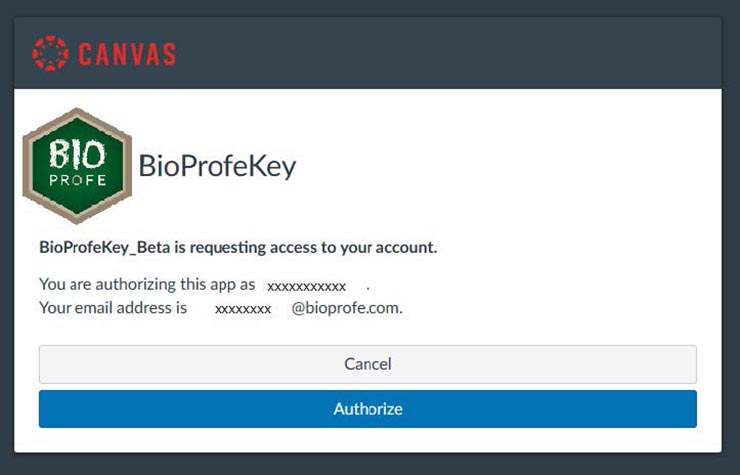
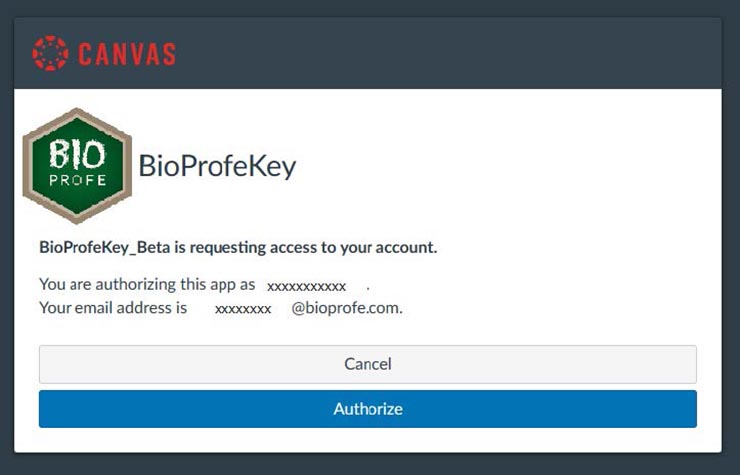
Authorize BioProfe to communicate with Canvas.
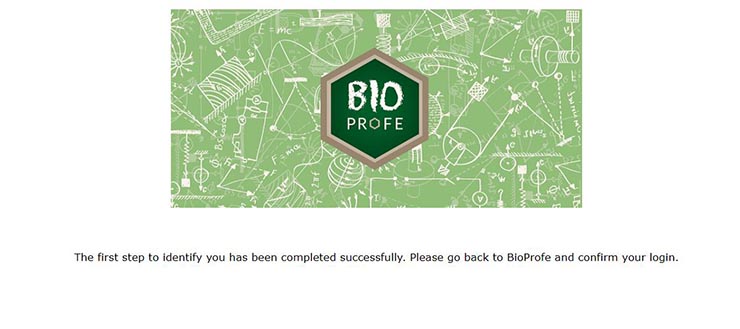
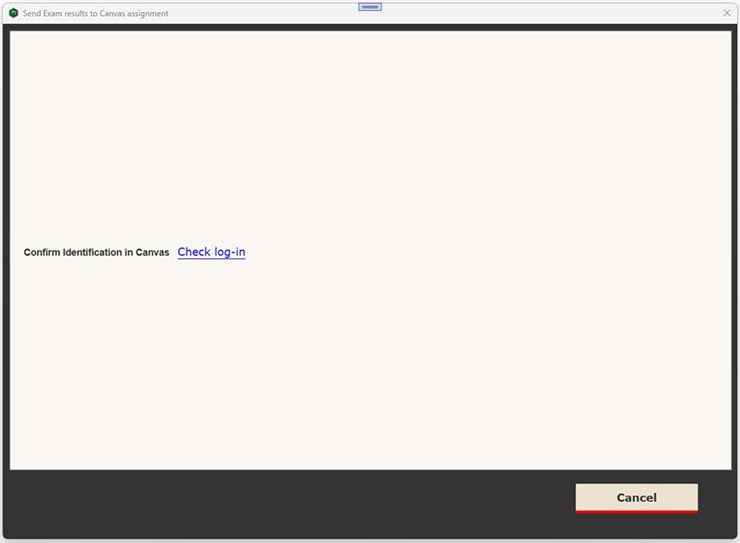
Back in BioProfe Solution app, click on the “Check log-in” link-button to confirm the user identification.
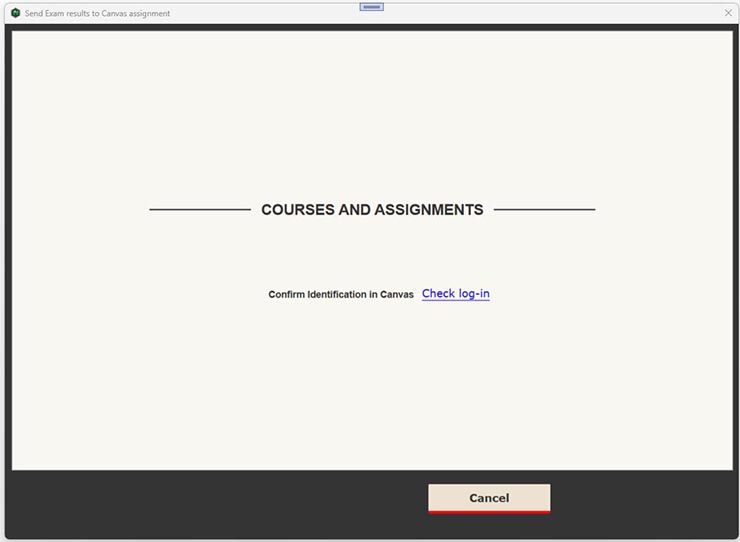
Next, you will be able to see the list of students classified by the courses that you have created in Canvas as a teacher.
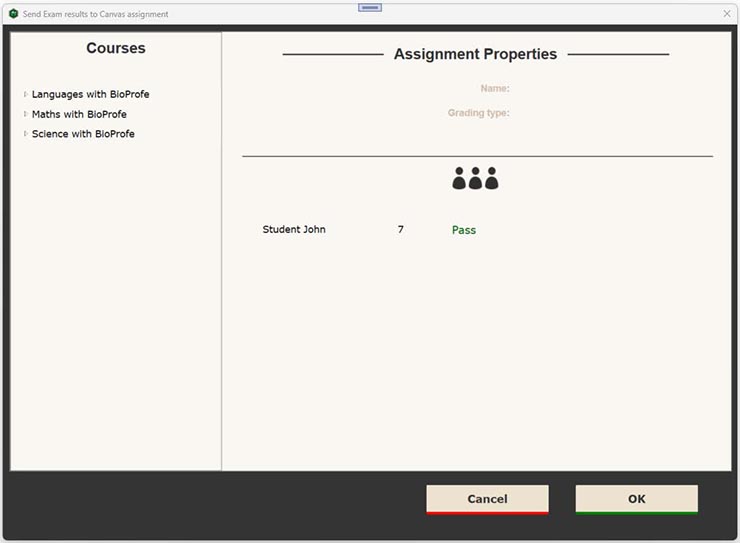
Select the assignment in the menu on the right.
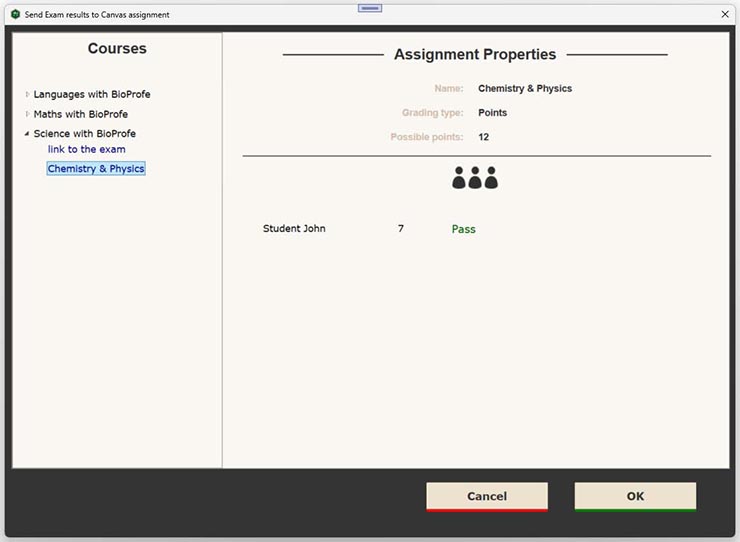
Click on the “OK” button.

Authorize BioProfe to communicate with Canvas.
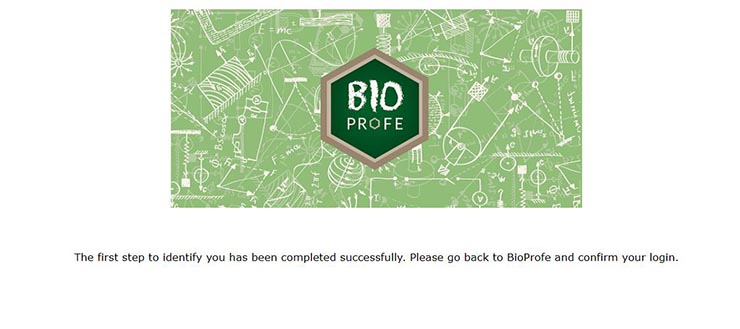
Back in CORRECTOR, click on the “Check log-in” link-button to confirm the user identification.
Then a report sending confirmation message will be displayed.

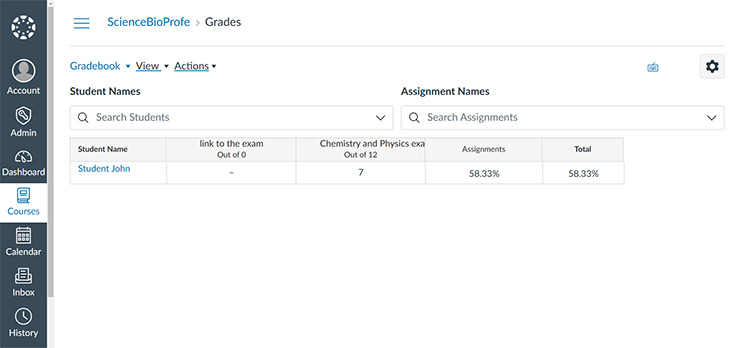
If you access your account on the Canvas platform, select the grades for the course in question, you will see the grade sent from BioProfe.